Best Cameras for Online Courses (2026): From Webcam to Mirrorless
I’ve reviewed tens of thousands of student feedback forms over my career. Want to know what comes up in every single negative review about production quality?
Audio. Not video. Audio.
Students will forgive a grainy picture. They’ll stick with a course shot on a phone in a kitchen. But the moment your voice sounds like you’re broadcasting from inside a tin can, they’re gone. So before you spend a single dollar on a camera, make sure your microphone situation is sorted. Read our Best Microphones for Online Courses guide first.
That said — good video does matter. It sets you apart from the roughly 90% of online courses that look like they were recorded on a potato. A crisp, well-lit talking-head shot builds trust. It tells your students you take your work seriously. And you don’t need a $3,000 cinema rig to get there.
Here’s every camera option worth considering for online course creation in 2026, from the phone in your pocket to a mirrorless body that’ll make your footage look genuinely professional.
Quick Comparison
| Camera | Price | Resolution | Best For |
|---|---|---|---|
| Your Smartphone | $0 extra | 1080p–4K | Getting started, budget builds |
| Logitech C922 | ~$80 | 1080p/30fps | Desk-based talking head |
| Elgato Facecam | ~$130–150 | 1080p/60fps | Upgraded webcam, streaming |
| Sony ZV-E10 | ~$500–800 | 4K (24MP APS-C) | Serious creators, best overall |
| Canon EOS R50 | ~$600–800 | 4K (24MP APS-C) | Beginner-friendly mirrorless |
Let’s walk through each category so you can make the right call for your situation.
Option 1: Your Smartphone (Free — Use What You Have)
Let me be blunt: for most course creators starting out, your phone is the right camera. Full stop.
Modern iPhones and flagship Androids shoot 1080p and 4K video that genuinely looks good. I’ve seen courses recorded entirely on an iPhone 14 that looked better than courses shot on a $2,000 DSLR by someone who didn’t know how to use it. The sensor in a current smartphone rivals consumer cameras from five years ago.
Here’s what you get for zero additional dollars:
- 1080p at 60fps or 4K at 30/60fps on most phones from the last three years
- Image stabilization that handles minor hand tremors and walking shots
- Portrait mode for a simulated shallow depth-of-field effect (blurred background)
- Built-in time-lapse and slow-motion for demonstration content
The limitations are real, though. You’re working with a fixed lens — no swapping to a wide-angle or a tight portrait lens. Low-light performance drops off fast compared to a camera with a larger sensor. And on some models (I’m looking at you, iPhone), there’s no headphone jack, which makes monitoring your audio a hassle unless you go wireless.
My recommendation: if you’re creating your first course, start with your phone. Put the money you save into a decent microphone and some basic lighting. Once you’ve validated your course idea and started generating revenue, upgrade. There’s no shame in smartphone footage — I’ve trained over 39,000 professionals, and plenty of successful course creators I’ve worked with never moved past their phone.
One critical tip: use a tripod or a mount. Handheld phone footage looks amateur no matter how good the sensor is. A $15 phone mount and a basic tripod will do more for your video quality than a $500 camera upgrade.
If you prefer to skip the camera entirely and create videos without being on camera, check out our Create Videos Without Being on Camera course.
Option 2: Webcams ($80–$150 — The Desk Setup)
If you’re recording at a desk — which describes most online course creators — a dedicated webcam is a straightforward upgrade from your phone. You mount it on your monitor, plug it in via USB, and you’re rolling. No SD cards, no battery management, no file transfers. It just works.
Logitech C922 (~$80)
The Logitech C922 has been the default streaming and video-call webcam for years, and for good reason. At around $80, it delivers 1080p at 30fps with automatic light correction and built-in background replacement software (yes, the green-screen thing, but without the actual green screen).
For course creators, the C922 is the “set it and forget it” option. You plug it into your computer, set it as your camera source in OBS or your recording software of choice, and hit record. The fixed-focus lens means you don’t have to worry about focus hunting mid-sentence. The image quality is clean in decent lighting.
The downsides: that fixed focus is also a limitation. If you want to hold up a book or a product to the camera, it won’t snap to your hand — everything past about arm’s length is slightly soft. The small sensor means low-light performance is mediocre at best. And the built-in mic is functional but nothing you’d want in a final course. Pair this with a dedicated microphone.
For a deeper dive into building your entire recording setup, check out our Produce Your Course Videos course.
Elgato Facecam (~$130–150)
The Elgato Facecam is what happens when a company that makes gear for streamers builds a webcam. It’s built around a Sony STARVIS sensor — the same sensor technology used in professional security cameras and broadcast equipment — which gives it significantly better low-light performance than the C922.
It shoots 1080p at up to 60fps, which gives your footage a smoother, more professional look than 30fps. The companion software lets you dial in exposure, white balance, and contrast so your image is consistent across every recording session — no more color shifts between clips.
One important note: the Facecam has no built-in microphone. Elgato assumes you’re using a dedicated mic, which you should be anyway. So factor that into your budget.
If you’re building a desk-based studio and you’re willing to spend a little more for noticeably better image quality, the Facecam is the better webcam. If budget is tight and you just need something that works, the C922 is still a solid choice.
Option 3: Mirrorless Cameras ($500–$800 — The Professional Look)
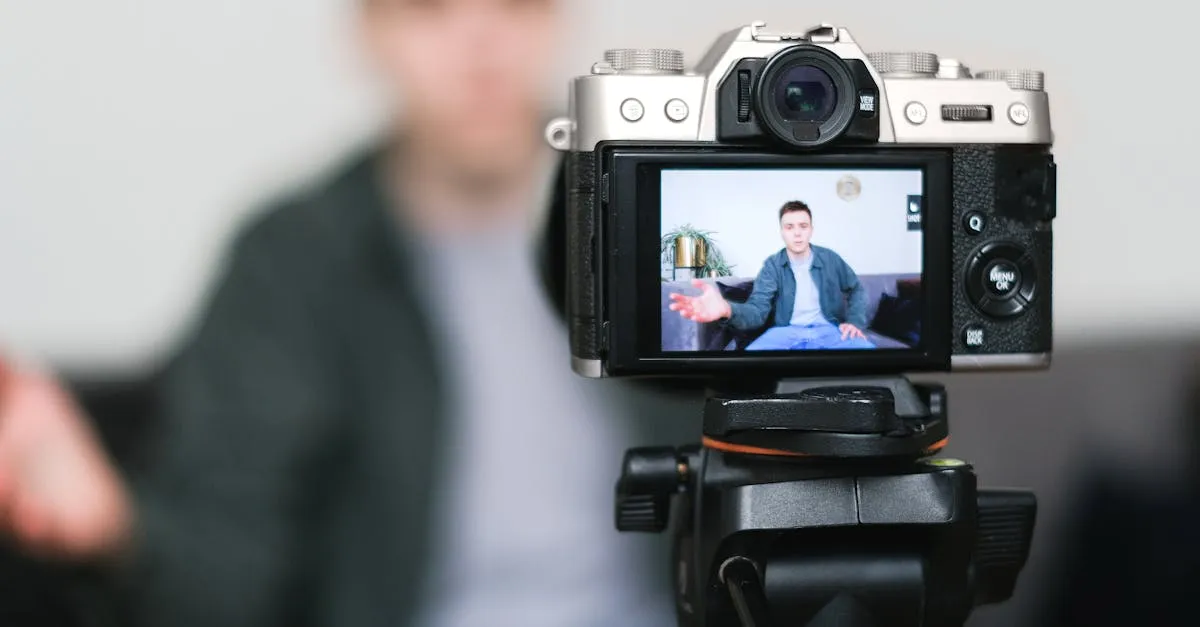
This is where things get serious. Mirrorless cameras are what separate “good enough” course video from “this person clearly knows what they’re doing” course video. The larger APS-C sensor captures more light, produces natural background blur (bokeh), and delivers a cinematic quality that no phone or webcam can match.
Yes, the price jumps significantly. But if you’re building a course business that generates real revenue, this is an investment that pays for itself in student trust and perceived value.
Sony ZV-E10 (~$500–800)
The Sony ZV-E10 is, in my opinion, the best camera for online course creators in 2026. Sony built this specifically for content creators — not photographers, not videographers, but people who sit in front of a camera and talk. Which is exactly what you do.
Here’s what makes it special:
- 24MP APS-C sensor — significantly larger than any phone or webcam sensor, meaning better low-light performance and natural background blur
- 4K video — crisp, detailed footage that holds up on large screens
- Product Showcase mode — this is the killer feature. Hold something up to the camera and it instantly shifts focus to the object. Put it down and it snaps back to your face. No tapping, no hunting. It just works.
- Side-flip screen — flips out to the side so you can see yourself while recording without the screen blocking accessories like a microphone
- Interchangeable lenses — start with the kit lens, upgrade later. Wide-angle for whiteboard sessions, a faster prime lens for that shallow depth-of-field look.
- Built-in microphone — decent directional mic for run-and-gun situations, plus a mic jack for your proper audio setup
- USB streaming — can be used as a webcam via USB, so it doubles as your live session camera
The body-only price hovers around $500–700. With the kit lens (16–50mm), you’re looking at roughly $700–800. That’s a real investment. But this camera will serve you for years across dozens of courses, hundreds of videos, and any other content you create.
For most course creators who are past the “testing the waters” phase, this is the camera I recommend. It’s the sweet spot of price, capability, and ease of use.
Canon EOS R50 (~$600–800)
The Canon EOS R50 is Canon’s answer to the ZV-E10, and it’s a strong one. If you’re already in the Canon ecosystem — or if you prefer Canon’s color science (warmer skin tones out of the camera) — the R50 is worth a serious look.
Key specs:
- 24MP APS-C sensor with Canon’s Dual Pixel CMOS AF II — arguably the best autofocus system in this price range
- 4K uncropped video — no crop factor, so you get the full field of view from your lens
- Flip-out screen — rotates fully for vlogging and self-recording
- Lightweight body — one of the lightest mirrorless cameras on the market, great for on-location shooting
- Beginner-friendly interface — Canon’s menus and guided UI are more approachable if you’ve never used an interchangeable-lens camera
The body-only price sits around $600–700. With a lens, you’re closer to $800+. It doesn’t have Sony’s Product Showcase mode, but Canon’s face-and-eye tracking autofocus is excellent and rarely loses lock on a subject.
Here’s how I’d frame the decision: if you want the creator-specific features (Product Showcase mode, side-flip screen, USB streaming out of the box), go Sony ZV-E10. If you want slightly better autofocus, warmer skin tones, and a more approachable learning curve, go Canon R50. Both are excellent cameras that will elevate your course video above 95% of what’s out there.
Which Camera Is Right for You?
Let me break this into three real-world scenarios.
Scenario 1: Budget/Desk Creator
You’re creating your first course. You work from a desk. Budget is tight.
Start with your phone. Seriously. Mount it on a small tripod, position it at eye level, and pair it with a decent USB microphone. Spend $15 on the mount and $50–100 on the mic. Total investment: under $120. See my full budget recording guide for the breakdown.
When you’re ready to upgrade from your phone but don’t want to jump to mirrorless, the Logitech C922 at $80 is the logical next step. Plug it in, point it at your face, record.
Scenario 2: Serious/Professional Creator
You’ve got a course or two under your belt. You’re generating revenue. You want your video to match the quality of your content.
Go mirrorless. The Sony ZV-E10 is my top pick for the Product Showcase mode alone — if you ever hold up books, products, or tools in your courses, that feature saves you from awkward focus-hunting moments. The Canon EOS R50 is the alternative if you prefer Canon or want something more beginner-friendly.
Budget roughly $700–900 total: camera with lens, a memory card, and a basic lighting setup (more on that below). This is a business investment — if your course sells for $200 and you enroll 50 students, the camera pays for itself in your first launch.
Scenario 3: On-Location/Mobile Creator
Your courses involve on-location shooting — real estate walkthroughs, outdoor demonstrations, workshop settings.
Use your phone for quick shots and a mirrorless camera for primary footage. The ZV-E10’s compact size and flip screen make it great for run-and-gun shooting. Pair it with a gimbal or monopod for stable handheld footage.
If your content involves aerial or outdoor landscape shots, a drone like the DJI Mini 3 (around $400+ with controller) can add production value. But for most course creators, this is a nice-to-have, not a need-to-have. Don’t buy a drone until you’ve identified a specific use case in your course content.
Don’t Forget Lighting
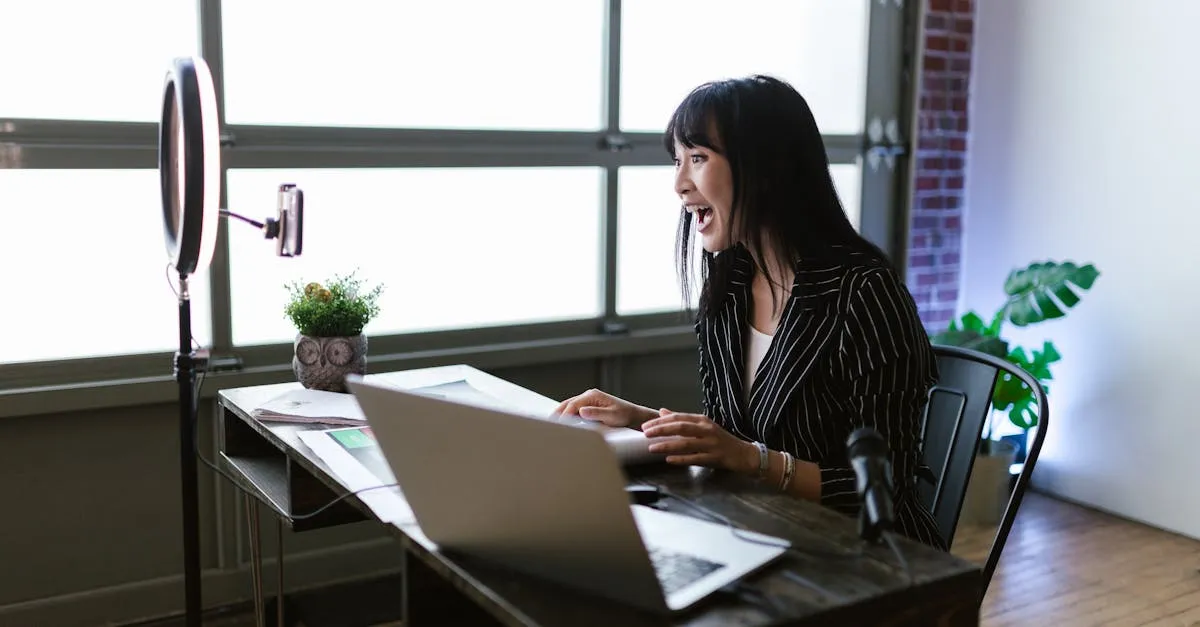
Here’s something most camera guides won’t tell you: a $100 camera with good lighting looks better than a $1,000 camera with bad lighting. Lighting is the single biggest factor in how professional your video looks, and it’s the thing most new course creators completely ignore.
You don’t need a studio setup. Two basic options:
-
Key light — A single, soft light source in front of you eliminates shadows and gives your footage a clean, consistent look. The Elgato Key Light is the standard for desk-based creators. It’s controllable via app, dimmable, and mounts behind your monitor. If you’re doing desk recordings regularly, this is worth every penny.
-
Softbox kit — For a broader, more diffused light that covers a larger area (like a home studio or standing setup), a Neewer Softbox Kit gives you professional-quality lighting at a fraction of what studio lights cost. These are especially useful if you’re using a mirrorless camera and want your footage to look genuinely cinematic.
Whichever route you choose, the rule is simple: light yourself from the front, not from behind. Your primary light source should face you, not be behind you. If your window is behind you and you’re recording into shadow, move. I’ve seen this mistake in hundreds of course videos, and it makes even expensive cameras look terrible.
For a full breakdown of studio setups, visit our Equipment Recommendations page.
Frequently Asked Questions
Do I need a 4K camera for online courses?
No. Most students watch courses on laptops, tablets, or phones where 1080p looks perfectly sharp. 4K gives you room to crop and zoom in editing without losing quality, which is genuinely useful. But it’s not required, and it creates larger file sizes and longer upload times. 1080p at 30fps is the standard for online courses. Shoot in 4K if your camera supports it and your storage and workflow can handle it, but don’t let 4K be the deciding factor in your camera purchase.
Can I use my phone as my primary course camera?
Yes, and many successful creators do. Modern smartphones shoot excellent 1080p and 4K video. The main limitations are fixed lens (no interchangeable lenses), smaller sensor (worse low-light performance), and ergonomics (harder to mount and monitor). If you use your phone, invest in a tripod mount and good lighting. The difference between handheld phone footage and mounted phone footage is enormous.
What’s more important — camera or microphone?
Microphone. Every time. Students will tolerate mediocre video. They will not tolerate bad audio. If you have $200 to spend, put $120 toward a good microphone and $80 toward basic lighting before you spend anything on a camera. Use your phone until you can afford to upgrade the camera properly.
Do I need an interchangeable-lens camera?
Not necessarily. If you’re recording at a desk in a controlled environment, a good webcam or your phone is sufficient. Interchangeable-lens cameras become valuable when you want shallow depth of field (that blurred-background look), shoot in varied lighting conditions, or need different focal lengths for different types of content. The Sony ZV-E10 with its kit lens covers most course-creator needs without buying additional lenses.
How do I use a mirrorless camera as a webcam?
Most modern mirrorless cameras, including the Sony ZV-E10 and Canon EOS R50, support USB webcam mode. You connect the camera to your computer via USB-C, and it appears as a camera source in Zoom, OBS, or your recording software. Some cameras also support clean HDMI output, which you can feed into a capture card for even higher quality. For online courses, USB webcam mode is usually more than enough.
Bottom line: Start with what you have. Upgrade when your revenue justifies it. And never let camera gear anxiety prevent you from hitting record.
The best camera for your online course is the one you’ll actually use.
Need help planning your entire course production setup? Visit our Equipment Recommendations page or enroll in Produce Your Course Videos for a complete walkthrough.
You Might Also Like
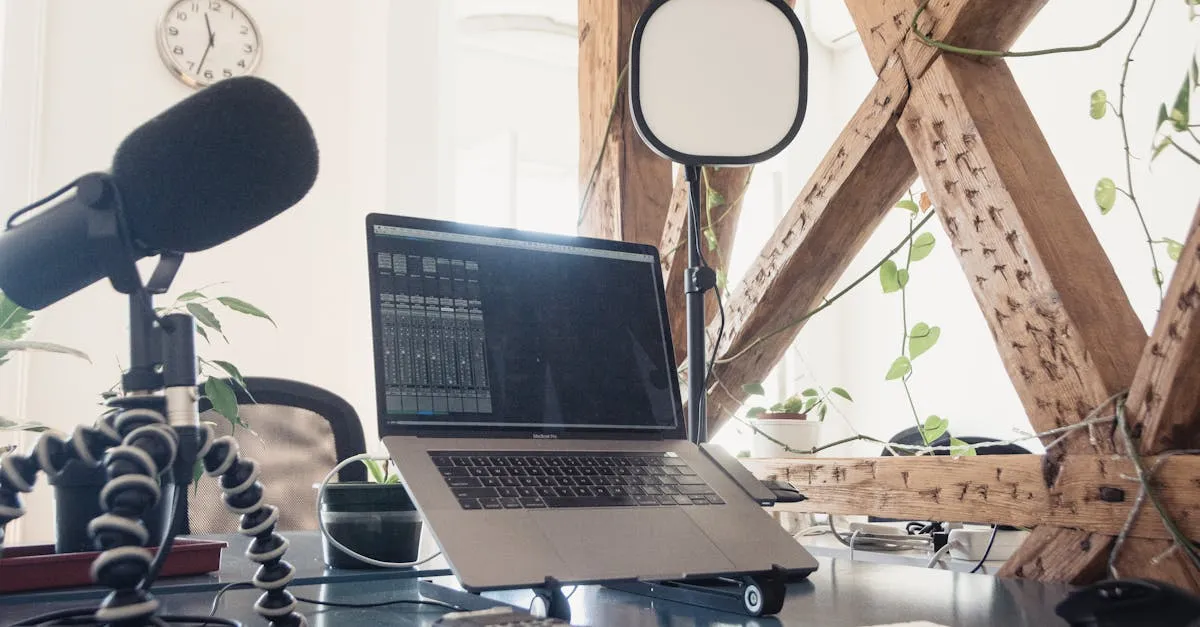
Best Microphones for Online Courses (2026): USB, XLR, and Wireless
Bad audio kills more courses than bad video. I tested every microphone a course creator might need — from $50 budget picks to professional studio setups.
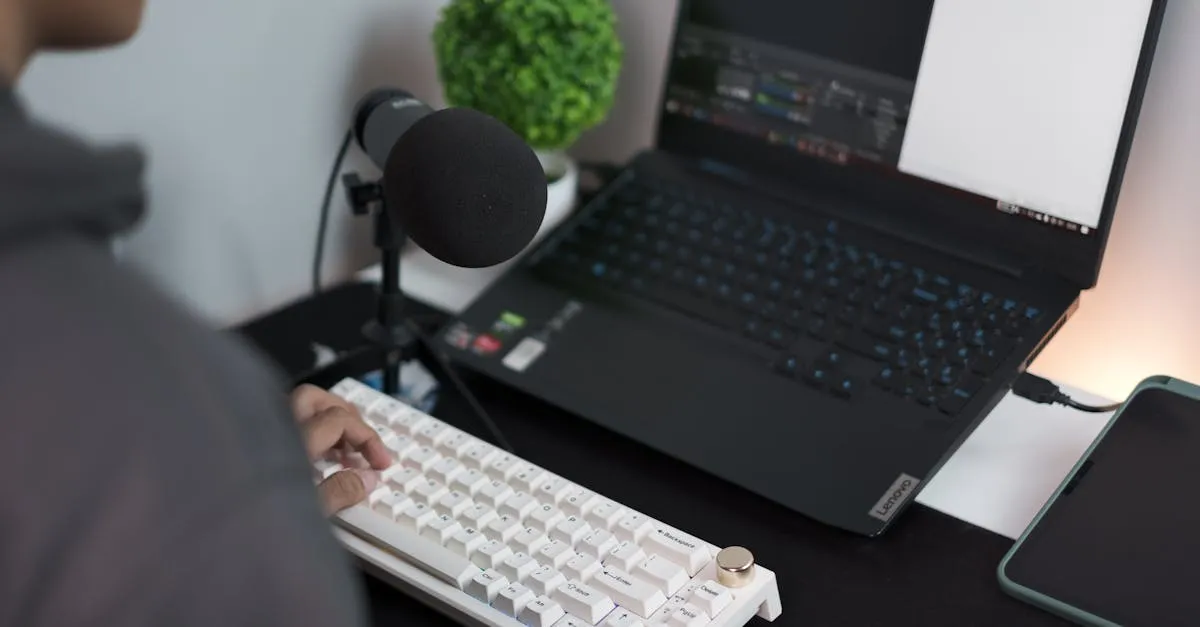
Best USB Microphones Under $100 for Course Creators (2026)
You don't need to spend $300 on a microphone to sound professional. Here are the best USB mics under $100 that will make your course audio clean and clear.
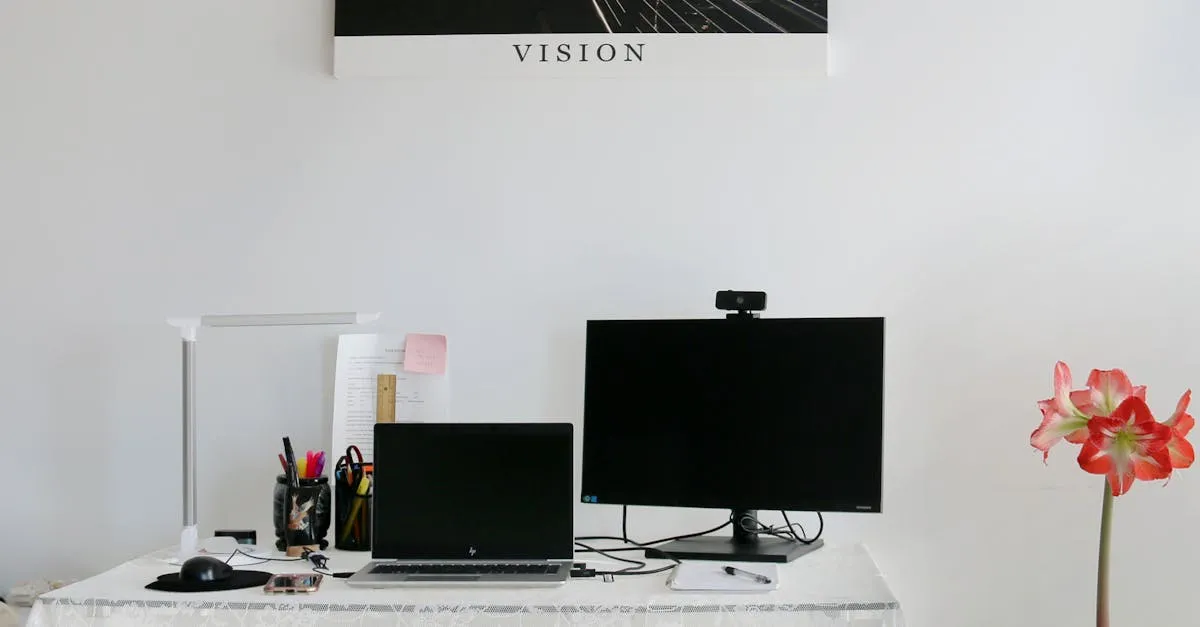
Best Webcams for Course Creators (2026): My Top Picks for Every Budget
A webcam is the simplest way to upgrade your course video quality without learning a real camera. Here are the best webcams for recording courses, Zoom calls, and live sessions.