Slide Design That Sells
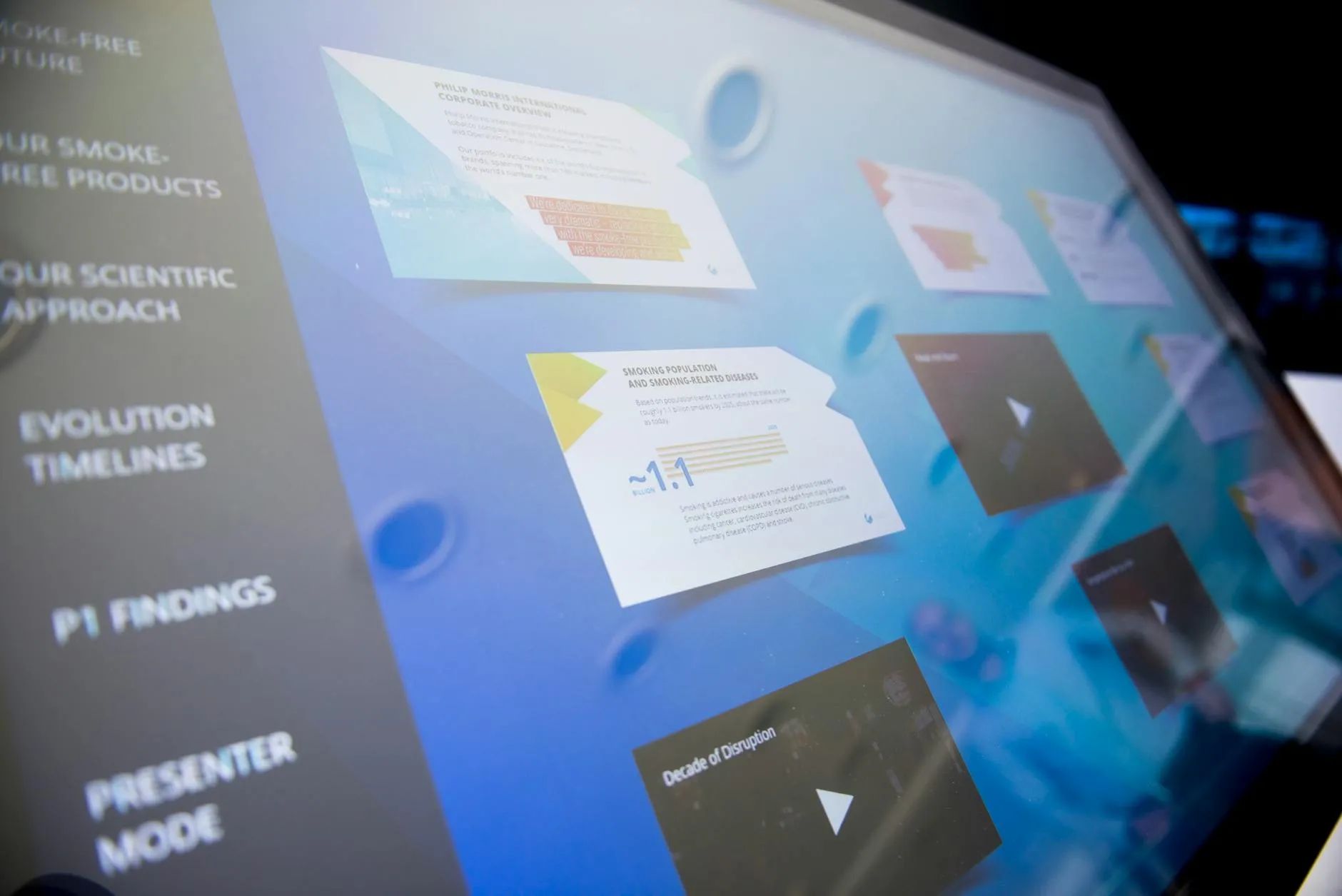
Your slides are not documents — they’re visual support for your voice. Every design decision should serve one purpose: keeping the viewer focused on your message.
One Idea Per Slide
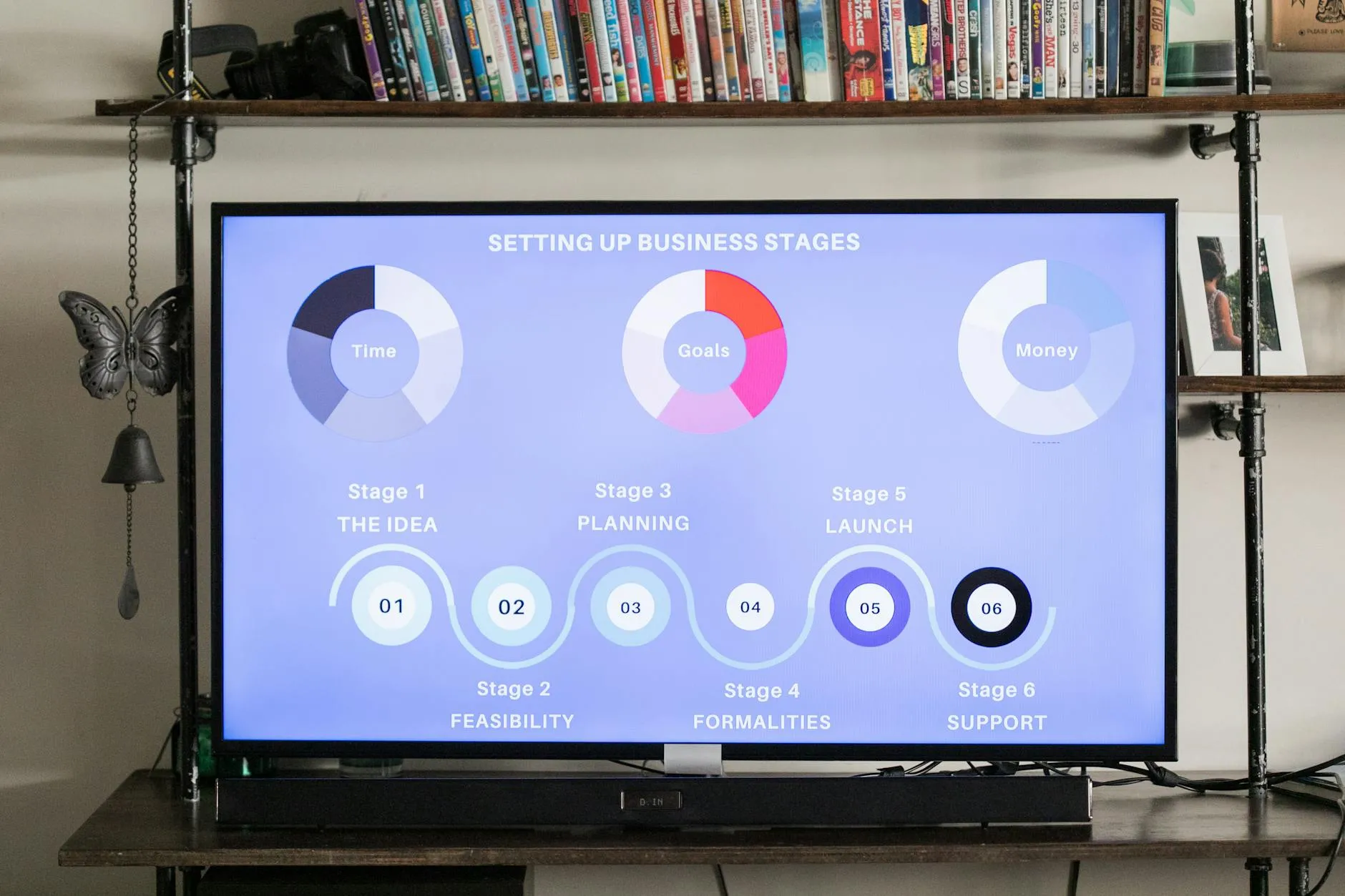
Don’t cram multiple concepts onto a single slide. One slide = one idea. If you’re making five points, that’s five slides. This pacing keeps viewers engaged and gives each point room to land.
Minimal Text
Use one sentence or just a few words per slide. You do the talking; slides do the supporting. Viewers can’t read a paragraph and listen to you at the same time — they’ll do one or the other, and it usually won’t be the listening.
Full-Bleed Images
Use images that fill the entire slide and reinforce the emotion of the moment:
- Problem sections: darker, more serious imagery
- Solution sections: brighter, hopeful imagery
- Avoid generic stock photos that feel disconnected from your message
No Bullet Point Lists
Bullet points are death to video pacing. They invite viewers to scan ahead and stop listening. If you need to cover five items, make five separate slides with one item each.
Clean, Consistent Design
- Use the same font family throughout
- Stick to a consistent color palette (your brand colors as accents)
- Maintain the same margins and text positioning
- Brand consistency builds subconscious trust
Text Overlays for Key Phrases
When you say something you want viewers to remember — your core promise, a key statistic, a powerful quote — put just those words on screen. This “burns” the phrase into memory through dual coding (hearing + seeing).
Keep Transitions Simple
Use simple cuts or quick fades between slides. Avoid spinning, bouncing, dissolving, or any animation that draws attention to itself. The transition should be invisible.
Proof Slides
For social proof moments:
- Screenshots with callout annotations highlighting key results
- Testimonial quotes on branded backgrounds
- Before/after comparisons with clear visual separation
Software Options
- Keynote (Mac) — smooth animations, clean output
- PowerPoint (PC/Mac) — widely available, solid features
- Google Slides — free, collaborative, simple
- Canva — has presentation mode, great for design-focused creators
- DaVinci Resolve (free) — use for final assembly if you want more control over timing and transitions
Template Tip
Create one master slide template at the start of your project. Set your fonts, colors, and layout once. Then clone that template for every new slide. Consistency is king — when your slides look uniform, viewers stop noticing the design and focus entirely on your message.
For AI-assisted slide creation, see Use AI to Build Faster.
Keep going — you're making progress through Video Sales Letters.
Need help? Email me ↗