Choose Your Editing Software
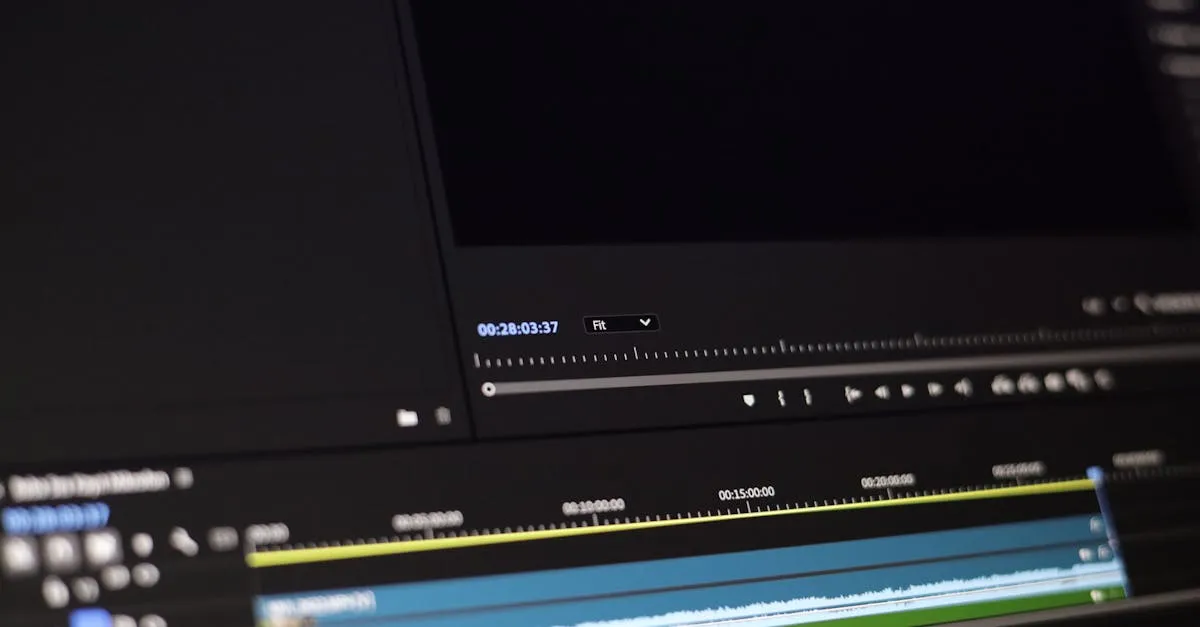
Video editing software is a topic where people overthink and over-spend. You need an editor that can:
- Trim clips (cut out mistakes)
- Layer video tracks (camera + screen recording)
- Adjust audio levels (make your voice consistent)
- Add text overlays (key points, headings)
- Export to MP4 at 1080p
That’s it. Every editor listed below can do all five. The differences are in interface, learning curve, and price.
Pick one. Learn it. Stick with it. Switching editors mid-course is a massive waste of time. All the skills transfer, but the keyboard shortcuts, workflows, and project formats don’t.
DaVinci Resolve
Platform: Mac, Windows, Linux Price: Free (Studio version $295 one-time)
DaVinci Resolve is the best free video editor available. Period. It’s professional-grade software used in Hollywood film production — and the free version has 95% of the features course creators will ever need.
Why it’s the top recommendation:
- Completely free for the core features (cut, edit, color, audio, effects)
- Professional color correction and audio tools
- No watermarks, no export limits, no subscription
- Cross-platform (Mac, Windows, Linux)
- The free version is genuinely sufficient for course video editing
Who it’s for: Anyone willing to invest a few hours learning the interface. The learning curve is steeper than CapCut or Camtasia, but the payoff is an editor you’ll never outgrow.
The learning curve: Expect 2–3 hours of tutorials before you’re comfortable. After that, editing a lesson takes 15–30 minutes.
Studio version upgrades: AI-powered features, noise reduction, higher resolution support. Most course creators never need these.
CapCut
Platform: Mac, Windows, iOS, Android, Web Price: Free (Pro version $8/month)
CapCut (by ByteDance, the TikTok parent company) is the simplest editor on this list. If you’ve never edited a video before and want to start immediately, this is your editor.
Why it’s great for beginners:
- Drag-and-drop interface that anyone can figure out in 10 minutes
- Auto-captions built in (and they’re surprisingly accurate)
- Free templates, effects, and transitions
- Mobile app lets you edit on your phone
- Exports without watermarks for basic edits — though CapCut keeps moving more effects and templates behind Pro, and using those on the free tier watermarks the export (as of September 2026)
Who it’s for: First-time editors who want to ship fast. Anyone editing on a phone or tablet. Creators who need auto-captions without extra software.
Limitations: Less precise control than DaVinci Resolve. Fewer audio tools. The simplicity that makes it fast also means you’ll hit a ceiling eventually — but that ceiling is higher than most course creators need.
ScreenFlow
Platform: Mac only Price: $199 one-time (as of September 2026)
ScreenFlow is designed specifically for screen recording and editing. If you’re on a Mac and your course is primarily screen-share tutorials, ScreenFlow is the most efficient tool for the job.
Why it’s popular with course creators:
- Built-in screen recorder (record and edit in the same app)
- Handles screen recordings + camera footage natively
- Simple interface optimized for screen-capture editing
- Good built-in captions and text tools
- Presets for exporting to common hosting platforms
Who it’s for: Mac users who want a simple, purpose-built editor for course videos. Especially good if you’re doing lots of screen-share tutorials.
Limitations: Mac only. The screen recorder is great, but the editor is less capable than DaVinci Resolve for complex projects.
Camtasia
Platform: Mac, Windows Price: $179.88/year subscription (as of September 2026 — Camtasia is subscription-only now; older perpetual licenses still work but are no longer sold)
Camtasia is the Windows equivalent of ScreenFlow — a screen recorder + editor designed for creating tutorials and course content.
Why it’s been a course creator staple:
- Built-in screen recorder
- Drag-and-drop interface with a gentler learning curve than DaVinci Resolve
- Annotations, callouts, and cursor effects built in (great for tutorials)
- Good templates for intros, lower thirds, and outros
- Cross-platform
Who it’s for: Windows users who want a simple, all-in-one recording and editing solution. Anyone doing software tutorials.
Limitations: Expensive for what it offers compared to free alternatives. The editing capabilities are limited compared to DaVinci Resolve.
Adobe Premiere Pro
Platform: Mac, Windows Price: $23/month (subscription only)
Premiere Pro is the industry standard for professional video editing. It’s powerful, flexible, and integrates with the rest of Adobe’s suite (After Effects, Photoshop, Audition).
Why it’s not the first recommendation for course creators:
- Subscription pricing adds up ($276/year, forever)
- The learning curve is steep
- Most features are overkill for course video editing
- DaVinci Resolve does 95% of what Premiere does for free
Who it’s for: People who already know and use Premiere. Professional video editors. Creators who are also producing marketing videos, ads, or YouTube content and need the Adobe ecosystem.
The Recommendation
| Your Situation | Use This |
|---|---|
| Willing to learn, want the best free option | DaVinci Resolve |
| Never edited before, want to start now | CapCut |
| Mac user, lots of screen tutorials | ScreenFlow |
| Windows user, lots of screen tutorials | Camtasia |
| Already use Premiere professionally | Premiere Pro |
| On a phone or tablet | CapCut |
If you’re not sure, start with DaVinci Resolve. It’s free, it’s powerful, and you’ll never need to switch. The 2–3 hours you spend learning it will pay for itself on your first course.
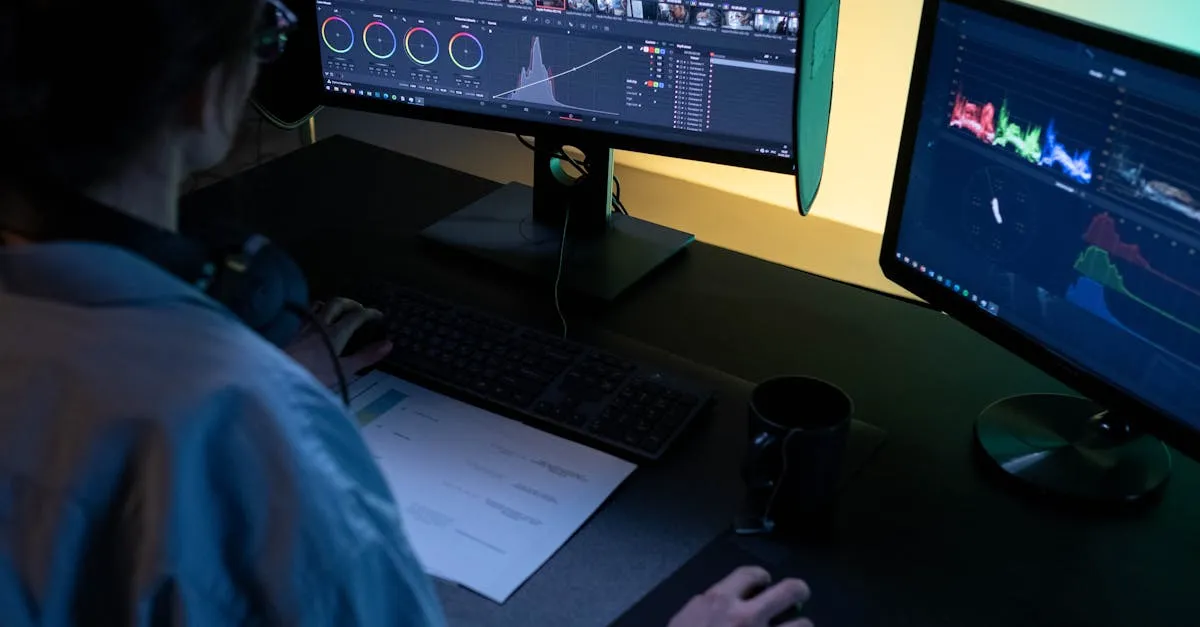
Learning Your Editor
Whichever editor you choose, invest time in learning these specific tasks:
- Importing media (camera footage, screen recordings, audio)
- Basic cuts (split clip, delete section, join clips)
- Audio leveling (normalize audio, reduce noise, adjust volume)
- Text overlays (add a title, lower third, or key-point text)
- Layering tracks (put camera footage over screen recording)
- Exporting to MP4 (1080p, 30fps, proper bitrate)
Search YouTube for “[your editor] tutorial for beginners” and follow along with a 30-minute video. That’s enough to edit your first lesson.
Next up: the basic edit workflow.
Keep going — you're making progress through Produce Your Course Videos.
Need help? Email me ↗